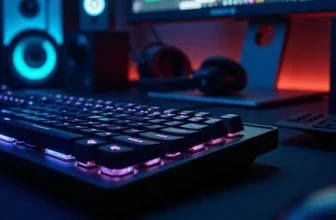

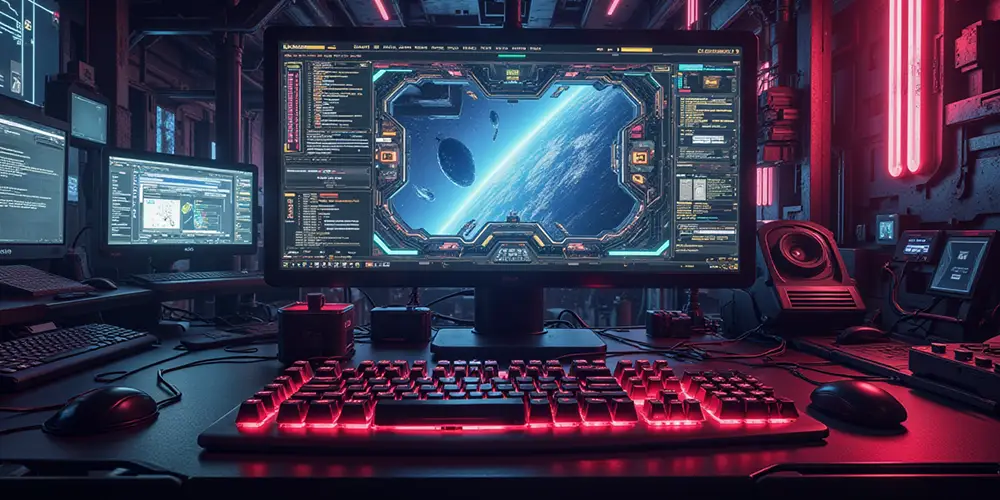
RGB keyboards have become very popular in the last few years. They add color and style to your desk setup. But what exactly is RGB lighting? How do you customize it?
What is RGB Lighting?
RGB stands for Red, Green, Blue. These are the three primary colors of light. RGB keyboards use small LED lights under each key. These LEDs combine to create millions of different colors.
The red, green, and blue LEDs work together. Different combinations produce different colors. For example, red plus green makes yellow. Red plus green plus blue makes white. This simple technology creates unlimited color possibilities.
How RGB Keyboards Work
Modern RGB keyboards have individual LEDs under or behind each key. Each LED can change color independently. This allows customization of single keys or entire zones.
The keyboard connects to your computer through USB or Bluetooth. Manufacturer software controls the lighting. You can program colors, effects, brightness, and speed through this software.
Popular RGB Lighting Effects
Static Colors: These show one solid color across your keyboard. You choose any color you want. It stays the same until you change it.
Breathing Effect: The keys fade in and out slowly. This creates a relaxing, pulsating look.
Wave Pattern: Colors move across your keyboard like waves on water. You can adjust the speed of these waves.
Ripple Effect: When you press a key, a color ripple spreads across your keyboard. This creates an interactive, dynamic look.
Rainbow Cycling: Colors cycle through the spectrum continuously. The entire keyboard changes colors smoothly and beautifully.
Reactive Lighting: Keys light up when you press them. Different keys can show different colors based on your setup.
Spectrum Cycling: Colors change quickly through the entire color spectrum. This creates a vibrant, energetic effect.
Customization Software
Most RGB keyboards come with manufacturer software. Popular brands include Razer, Logitech, Corsair, and SteelSeries.
Razer Synapse lets you customize colors for individual keys or zones. You can create multiple profiles for gaming, work, or gaming.
Logitech G Hub provides similar customization options. It allows brightness adjustment and effect selection.
Corsair iCUE offers advanced features like syncing lights with in-game actions.
Open-source options like OpenRGB work with many different keyboard brands. These free tools offer alternatives to manufacturer software.
How to Customize Your RGB Keyboard
Step 1: Download the Software
Visit the manufacturer’s website. Download the official software for your keyboard model. Different keyboards need different software.
Step 2: Connect Your Keyboard
Plug in your keyboard or connect it via Bluetooth. The software should detect it automatically.
Step 3: Open the Lighting Menu
Find the lighting or illumination tab in the software.
Step 4: Choose Your Colors
Use the color picker to select your desired color. You can choose preset colors or create custom colors.
Step 5: Select Lighting Effects
Choose from available lighting effects like static, breathing, wave, or rainbow.
Step 6: Adjust Speed and Brightness
Use sliders to change animation speed and brightness level. Higher speed creates faster effects. More brightness creates stronger colors.
Step 7: Customize Individual Keys
Many keyboards allow per-key customization. Select specific keys and assign different colors. For example, make WASD keys red for gaming.
Step 8: Save Your Profile
Save your customized setup as a profile. You can create multiple profiles for different activities.
Keyboard Shortcuts for Quick Changes
Most RGB keyboards have built-in shortcuts. You don’t need software to adjust lighting.
Fn + Right Arrow: Cycle through lighting modes.
Fn + Up Arrow: Increase brightness.
Fn + Down Arrow: Decrease brightness.
Fn + Left Arrow: Decrease animation speed.
These shortcuts work on most mechanical keyboards without needing software access.
Benefits of RGB Keyboards
Better Visibility: RGB lighting helps you see keys in dark environments. This improves typing accuracy at night.
Enhanced Gaming: Highlight important keys for your games. Sync lights with in-game actions for immersion.
Improved Focus: Dynamic colors help maintain concentration. Studies show certain colors improve productivity.
Aesthetic Appeal: Make your desk setup look professional and stylish. Customize colors to match your room decor.
Reduced Eye Strain: Proper RGB lighting reduces eye fatigue during long sessions. Dimmer settings prevent eye discomfort.
Personalization: Express your personality through custom colors and effects. Create a unique setup that matches your style.
RGB Keyboards for Gaming vs Work
For Gaming: Use reactive lighting to highlight WASD and arrow keys. Bright colors create an immersive experience. Sync lighting with game actions for tactical advantage.
For Work: Use calming colors like blue or green. Lower brightness prevents eye strain during long work hours. Static colors are better than flashing effects for concentration.