

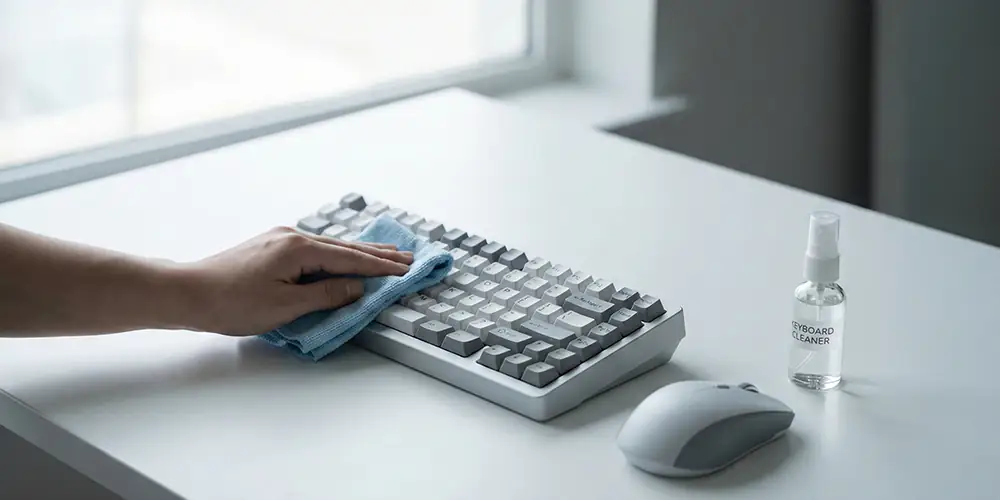
If you’re like most computer users, you probably touch your keyboard and mouse every single day. Whether you work from home, game late into the night, or browse casually, these two devices collect more dirt and germs than you might expect. Dust, food crumbs, and oily fingerprints can all build up over time, making your workspace look dull and even affecting the performance of your devices.
The good news? Cleaning your keyboard and mouse doesn’t take much time or technical skill. You just need a few household tools and a little care. Here’s a simple guide to help you keep your essential computer accessories clean and working perfectly.
Why Cleaning Your Keyboard and Mouse Matters
A clean keyboard and mouse are not just about appearances, but they’re about health and efficiency. Studies show that keyboards can have more bacteria than a toilet seat! That’s because our hands transfer sweat, oil, and germs to every key press and mouse click.
Besides hygiene, dust or debris under the keys or inside a mouse sensor can lead to sticky keys, clogged sensors, and slower response times. Keeping them clean means better typing, smoother movement, and a longer lifespan for your devices.
What You’ll Need
Before you start cleaning your keyboard and mouse, gather these simple items:
- A soft, lint-free microfiber cloth
- Cotton swabs (or earbuds)
- Isopropyl alcohol (at least 70%) or mild cleaning spray
- A small brush or old toothbrush
- Compressed air can (optional but helpful)
Make sure your keyboard and mouse are unplugged or turned off if wireless. Safety first!
How to Clean Your Keyboard (Step by Step)
- Turn it upside down: Gently shake the keyboard to let any loose crumbs or dust fall out.
- Blow out the dust: Use a can of compressed air or a small brush to reach between the keys.
- Wipe the surface: Dampen a microfiber cloth with isopropyl alcohol and wipe the top and sides of the keys. Avoid soaking the cloth, you just need it slightly damp.
- Detail clean with cotton swabs: Use cotton swabs dipped lightly in alcohol to clean around each key or any stains.
- Let it dry completely: Wait a few minutes before plugging it back in or turning it on.
If you’re comfortable, you can remove individual keycaps for a deeper clean, but most people can stick to regular surface cleaning once a week.
How to Clean Your Mouse
Your mouse also needs regular cleaning, especially around the scroll wheel and the bottom sensor.
- Turn it off/unplug it.
- Wipe it down: Clean the surface with a damp microfiber cloth and alcohol solution.
- Focus on details: Use cotton swabs around the buttons and scroll wheel, where dirt often accumulates.
- Clean the bottom: The small sensor area should be carefully wiped to remove dust for better tracking.
- Dry it well before use.
If you use a gaming mouse with textured grips or side buttons, spend a little more time there, those areas collect more grime.
Extra Tips for a Clean Workspace
- Wash your hands before using your computer.
- Avoid eating directly above your keyboard.
- Cover your keyboard when not in use.
- Give everything a quick wipe weekly to prevent buildup.
Small actions make a big difference over time and, a clean setup simply feels better to use.